How to Improve Streaming Quality in Inat Box
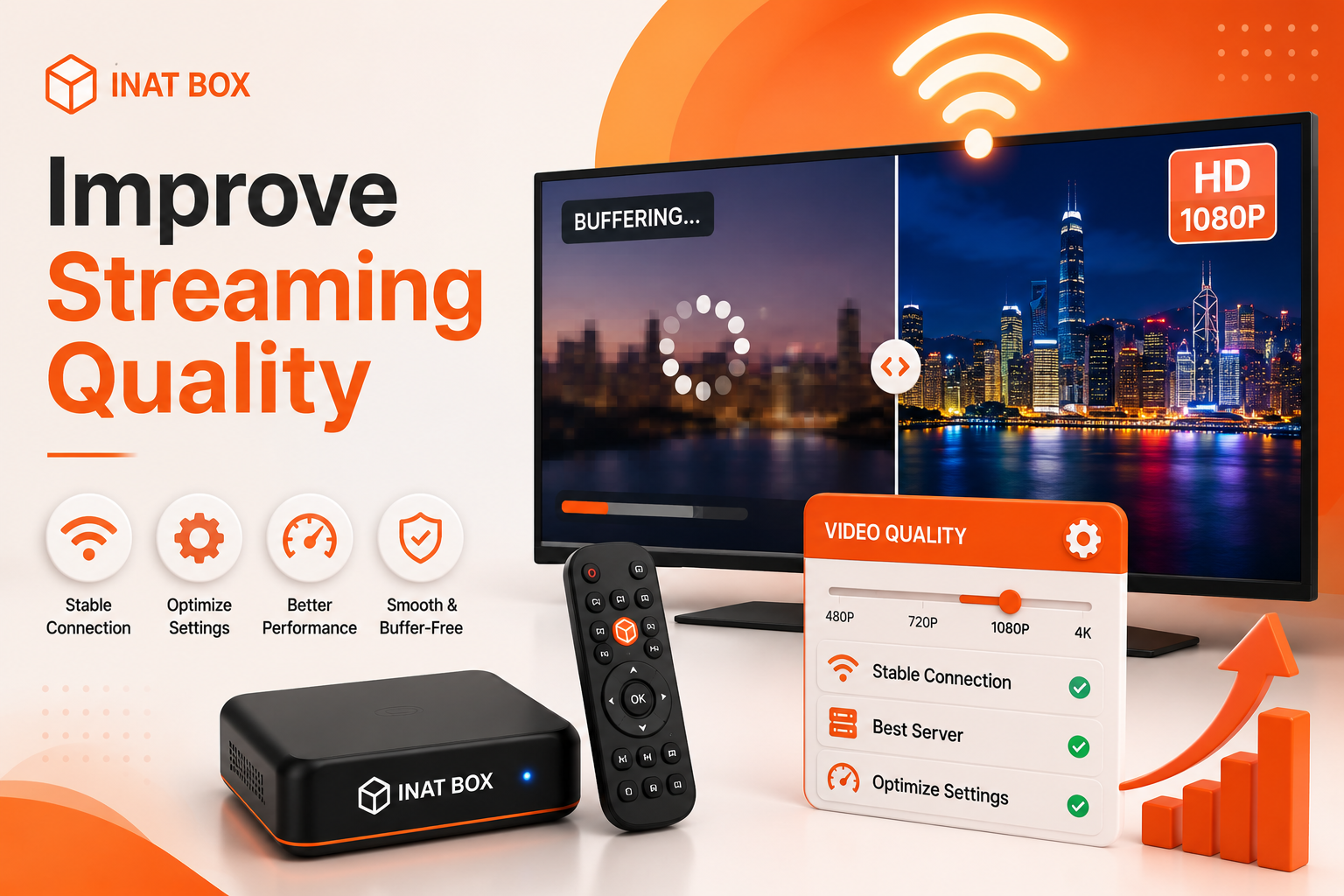
If videos on Inat Box appear blurry, buffer frequently, or play at a low resolution, there are several ways to improve your streaming experience. Most quality issues are caused by slow internet speeds, outdated app versions, overloaded device resources, or incorrect playback settings. By following the tips below, you can enjoy smoother and clearer streaming.
Common Reasons for Poor Streaming Quality
Before adjusting any settings, it’s helpful to know what may be affecting video quality.
Common causes include:
- Slow or unstable internet connection
- Low video quality settings
- Outdated Inat Box version
- Too many background apps
- Corrupted app cache
- Low device storage
- Temporary server congestion
- Weak Wi-Fi signal
Understanding the cause will help you choose the right solution.
1. Use a Stable Internet Connection
A fast and reliable internet connection is the most important factor for high-quality streaming.
For better performance:
- Connect to a stable Wi-Fi network.
- Move closer to your router.
- Switch from mobile data to Wi-Fi if available.
- Restart your router if the connection becomes unstable.
A stronger connection reduces buffering and improves video clarity.
2. Select the Highest Available Video Quality
Some versions of Inat Box allow you to adjust playback quality.
To change the quality:
- Start playing a video.
- Tap the screen to display the playback controls.
- Open Settings or Quality.
- Choose the highest available resolution, such as 720p or 1080p, if your internet speed supports it.
If playback starts buffering, lower the quality slightly for smoother streaming.
3. Update Inat Box to the Latest Version
Older versions may contain bugs that affect streaming performance.
To update:
- Download the latest version from a trusted source.
- Install the updated APK.
- Restart the app.
- Test video playback again.
Updates often improve stability, compatibility, and streaming quality.
4. Clear App Cache
Over time, cached files can become corrupted and slow down the app.
To clear the cache:
- Open Settings.
- Go to Apps.
- Select Inat Box.
- Tap Storage.
- Choose Clear Cache.
Restart the app after clearing the cache.
5. Close Background Apps
Running multiple apps at the same time can reduce available RAM and affect streaming performance.
For better results:
- Close unused apps.
- Clear your Recent Apps list.
- Stop unnecessary downloads while streaming.
This helps your device dedicate more resources to Inat Box.
6. Free Up Device Storage
Low storage can slow down your device and impact video playback.
To free up space:
- Delete unused apps.
- Remove duplicate photos and videos.
- Clear downloaded files.
- Delete temporary files.
Keeping sufficient free storage improves overall performance.
7. Restart Your Device
A simple restart can resolve temporary software issues affecting streaming.
To restart:
- Press and hold the Power button.
- Tap Restart.
- Wait for the device to reboot.
- Open Inat Box again.
Restarting refreshes system resources and often improves playback.
8. Reduce Network Usage
If other devices are using the same internet connection, your streaming quality may decrease.
To improve bandwidth:
- Pause large downloads.
- Stop cloud backups temporarily.
- Limit streaming on other devices.
- Disconnect devices that aren’t in use.
This allows more internet speed for Inat Box.
9. Check for Server Congestion
Sometimes poor streaming quality is caused by busy servers rather than your device.
If videos buffer during peak hours:
- Wait a few minutes.
- Try watching at a different time.
- Test another video or channel.
Server congestion usually improves once traffic decreases.
10. Reinstall Inat Box
If streaming quality remains poor after trying the previous solutions, reinstalling the app may help.
Steps:
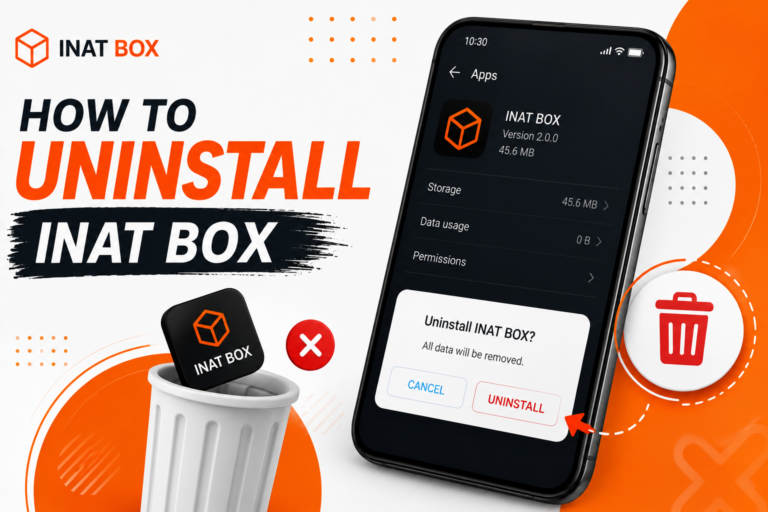
- Uninstall Inat Box.
- Restart your device.
- Install the latest version.
- Launch the app.
- Test video playback again.
A clean installation can resolve issues caused by damaged app files.
Tips for Better Streaming Performance
To enjoy smoother streaming:
- Keep Inat Box updated.
- Use a high-speed internet connection.
- Clear the app cache regularly.
- Close unnecessary background apps.
- Restart your device occasionally.
- Keep enough free storage available.
These simple habits can significantly improve your viewing experience.
Frequently Asked Questions
Final Thoughts
Improving streaming quality in Inat Box is usually straightforward. Start by using a stable internet connection, selecting the highest available video quality, updating the app, and clearing the cache. If problems continue, free up storage, close background apps, or reinstall the latest version. Following these steps will help you enjoy smoother playback, fewer interruptions, and a better overall streaming experience.