How to Fix Inat Box No Sound
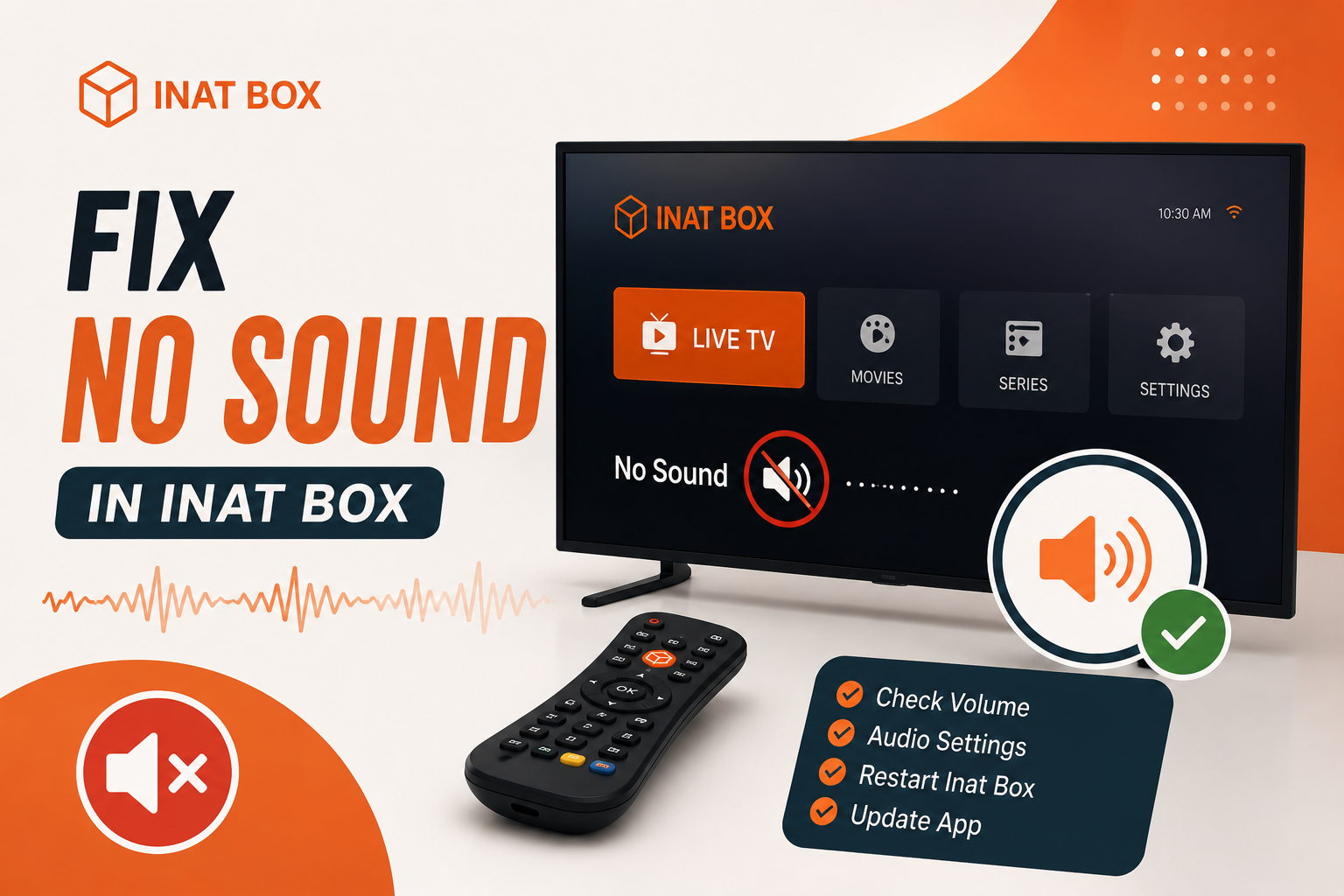
If Inat Box has video but no sound, the problem is usually caused by muted device settings, incorrect audio output, app glitches, corrupted cache, or unsupported media playback. Fortunately, you can resolve most audio issues with a few simple troubleshooting steps. Follow the solutions below to restore sound in Inat Box.
Common Reasons Why Inat Box Has No Sound
Before trying the fixes, it’s helpful to understand what may be causing the issue.
Common causes include:
- Device volume is muted or too low
- Bluetooth audio device is connected
- Corrupted app cache
- Outdated Inat Box version
- Unsupported audio codec
- Temporary app glitch
- Device software issues
- Media player settings
Knowing the cause makes it easier to apply the right solution.
1. Check Your Device Volume
Sometimes the issue is simply that your media volume is turned down or muted.
Try these steps:
- Press the Volume Up button.
- Make sure Media Volume is turned up.
- Disable Silent or Do Not Disturb mode.
- Test the sound using another app.
If audio works in other apps, continue with the next troubleshooting steps.
2. Disconnect Bluetooth Devices
If your phone is connected to Bluetooth headphones or speakers, the sound may be playing through that device instead of your phone.
To check:
- Turn off Bluetooth temporarily.
- Disconnect any paired audio devices.
- Reopen Inat Box.
- Play a video again.
If the sound returns, reconnect your Bluetooth device if needed.
3. Restart Inat Box
Temporary glitches can prevent audio from working properly.
To restart the app:
- Close Inat Box completely.
- Remove it from the Recent Apps screen.
- Open the app again.
- Play a video to check the sound.
This simple step often fixes minor playback issues.
4. Clear App Cache
Corrupted cache files may affect audio playback.
Follow these steps:
- Open Settings.
- Go to Apps.
- Select Inat Box.
- Tap Storage.
- Choose Clear Cache.
- Restart the app.
If the issue remains, you can also try Clear Data, but be aware that this may reset app preferences.
5. Update Inat Box to the Latest Version
Older versions of Inat Box may contain bugs that cause sound problems.
To update:
- Download the latest version from a trusted source.
- Install the updated APK.
- Launch the app.
- Test the audio again.
App updates often include fixes for playback and compatibility issues.
6. Check Audio Track Settings
Some videos include multiple audio tracks, and the selected one may not work correctly.
While playing a video:
- Open the player settings.
- Look for Audio or Audio Track.
- Select another available language or audio option.
- Resume playback.
If another audio track is available, the sound should return.
7. Restart Your Device
A device restart can fix temporary system issues affecting audio.
To restart:
- Press and hold the Power button.
- Tap Restart.
- Wait for your device to reboot.
- Open Inat Box and test the sound.
8. Check Device Software Updates
Outdated Android software may cause compatibility problems with media apps.
To update your device:
- Open Settings.
- Tap Software Update or System Update.
- Install any available updates.
- Restart your device.
Keeping your device updated improves overall app performance.
9. Reinstall Inat Box
If none of the previous methods work, reinstalling the app may fix damaged installation files.
Steps:
- Uninstall Inat Box.
- Restart your phone.
- Download the latest version.
- Install the app again.
- Play a video to check whether the sound is working.
A clean installation often resolves persistent audio issues.
10. Test Different Videos
Sometimes the issue is with a specific video rather than the app itself.
Try playing:
- Another movie
- A different TV channel
- Another episode
- Content from another category
If only one video has no sound, the problem is likely with that media file.
Tips to Prevent Sound Problems
To reduce the chances of audio issues in the future:
- Keep Inat Box updated.
- Clear the app cache regularly.
- Avoid connecting multiple Bluetooth audio devices.
- Keep your Android software updated.
- Download the app only from trusted sources.
- Restart your device occasionally.
Frequently Asked Questions
Final Thoughts
Most Inat Box no sound issues can be resolved by checking your device’s volume, disconnecting Bluetooth devices, clearing the app cache, updating the app, or restarting your phone. If the problem persists, reinstall the latest version and test different videos to determine whether the issue is with the app or the content itself. Following these troubleshooting steps should restore audio and provide a smoother streaming experience.