How to Fix Inat Box Parse Error
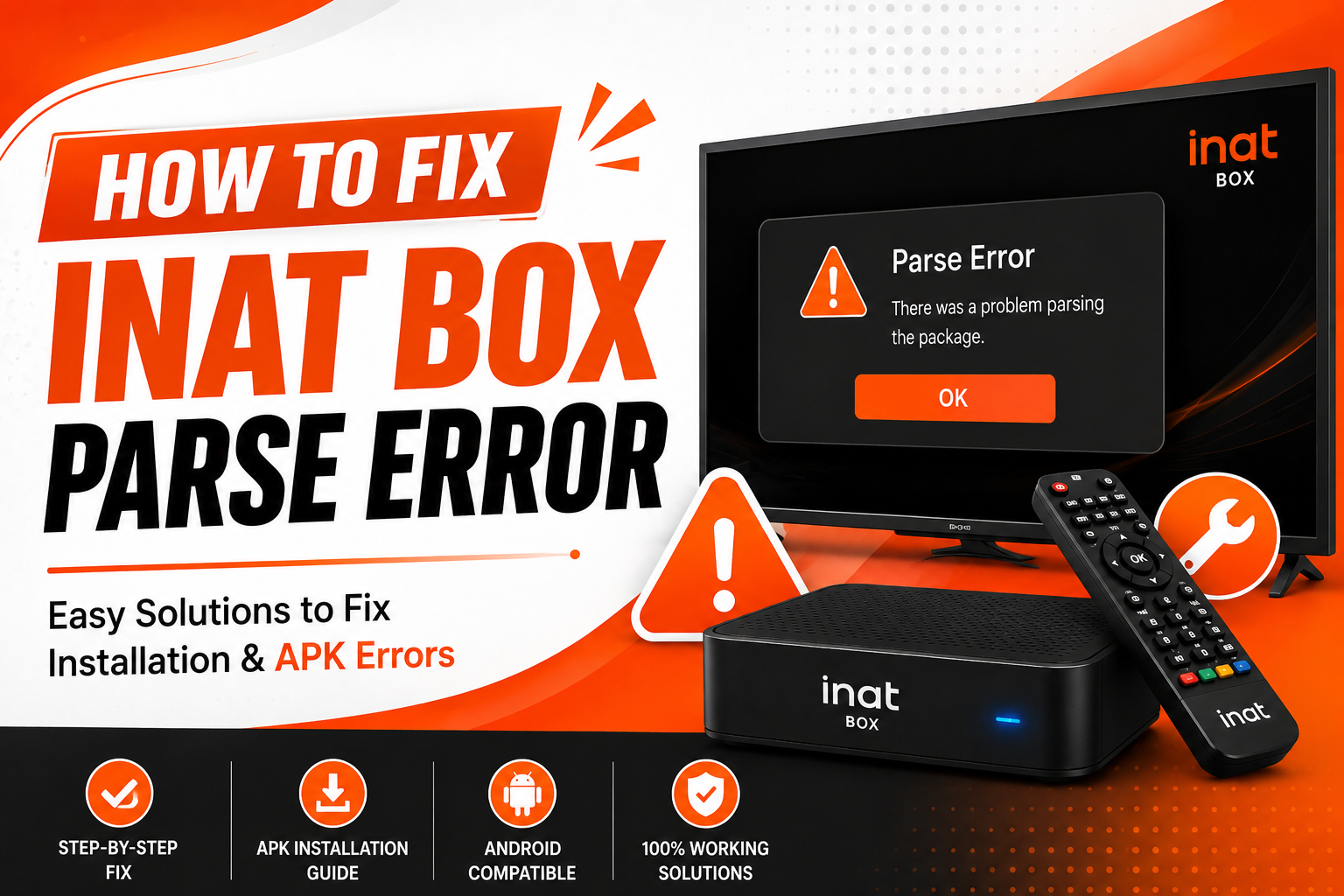
A Parse Error in Inat Box usually appears during installation and means that Android cannot install or read the APK file correctly. This error is commonly caused by an incompatible Android version, a corrupted APK file, an incomplete download, or installation settings on your device. Fortunately, you can usually fix the problem with a few simple troubleshooting steps.
Common Reasons Why Inat Box Shows a Parse Error
Before trying the solutions, it’s helpful to understand what may be be causing the issue.
Common causes include:
- Corrupted or incomplete APK file
- Incompatible Android version
- Unsupported device architecture
- Installation from an untrusted source
- Disabled installation permissions
- Damaged APK file
- Low device storage
- Temporary system glitches
Identifying the cause makes it easier to apply the correct fix.
1. Download the APK Again
An incomplete or corrupted download is one of the most common reasons for a Parse Error.
To fix it:
- Delete the existing APK file.
- Visit a trusted website.
- Download the latest version of Inat Box again.
- Wait until the download is fully complete.
- Try installing the APK.
Avoid interrupting the download process, as incomplete files often trigger installation errors.
2. Check Your Android Version
Some versions of Inat Box require a minimum Android version.
To check your Android version:
- Open Settings.
- Go to About Phone.
- Tap Android Version.
If your device is running an older version of Android, install a compatible release of Inat Box or update your operating system if possible.
3. Enable Installation from Unknown Sources
Since Inat Box is installed using an APK file, Android may block the installation unless permission is enabled.
To allow installation:
- Open Settings.
- Go to Security or Privacy.
- Tap Install Unknown Apps.
- Select your browser or file manager.
- Enable Allow from this Source.
Then try installing the APK again.
4. Free Up Device Storage
If your device doesn’t have enough available storage, Android may fail to install the APK.
To create space:
- Delete unused apps.
- Remove unnecessary downloads.
- Clear temporary files.
- Delete duplicate photos or videos.
After freeing up storage, try installing Inat Box again.
5. Restart Your Device
Temporary system glitches can sometimes cause installation errors.
To restart:
- Press and hold the Power button.
- Tap Restart.
- Wait for your device to reboot.
- Install the APK again.
A simple restart often resolves temporary installation issues.
6. Delete the Old APK File
If you’ve downloaded multiple versions of Inat Box, you may accidentally install an outdated or damaged APK.
To avoid this:
- Delete older APK files.
- Keep only the latest version.
- Download a fresh copy if necessary.
Installing the correct file reduces the chances of a Parse Error.
7. Check File Integrity
Sometimes the APK file becomes corrupted during transfer or download.
Before installing:
- Verify the file downloaded completely.
- Avoid renaming the APK.
- Don’t modify or extract the APK file.
- Download it again if the file size looks unusually small.
A complete and unmodified APK is less likely to trigger installation problems.
8. Update Your Android System
Running an outdated Android version may cause compatibility issues.
To update your device:
- Open Settings.
- Tap Software Update or System Update.
- Install any available updates.
- Restart your device.
A newer Android version may support the latest Inat Box release.
9. Re-download from a Trusted Source
Using unofficial or modified APK files increases the risk of installation errors.
For the best results:
- Download the APK from a trusted website.
- Avoid modified or incomplete APK packages.
- Make sure you’re installing the latest version.
A genuine APK file is much less likely to produce a Parse Error.
10. Install a Compatible Version
If your phone is older, the latest version of Inat Box may not support your device.
In this case:
- Check your Android version.
- Download a compatible older release of Inat Box.
- Install the version that matches your device specifications.
Using the correct version often resolves compatibility-related Parse Errors.
Tips to Avoid Parse Errors
To reduce future installation problems:
- Always download the latest APK from a trusted source.
- Keep your Android system updated.
- Ensure sufficient free storage.
- Enable installation from unknown sources before installing.
- Avoid interrupting APK downloads.
- Delete outdated APK files regularly.
Frequently Asked Questions
Final Thoughts
Most Inat Box Parse Error issues can be resolved by downloading a fresh APK, enabling installation from unknown sources, checking your Android version, and ensuring you have enough storage space. If the problem continues, restart your device, update your Android system, or install a version that’s compatible with your device. Following these troubleshooting steps should help you install Inat Box successfully without encountering a Parse Error.