How to Clear Cache in Inat Box
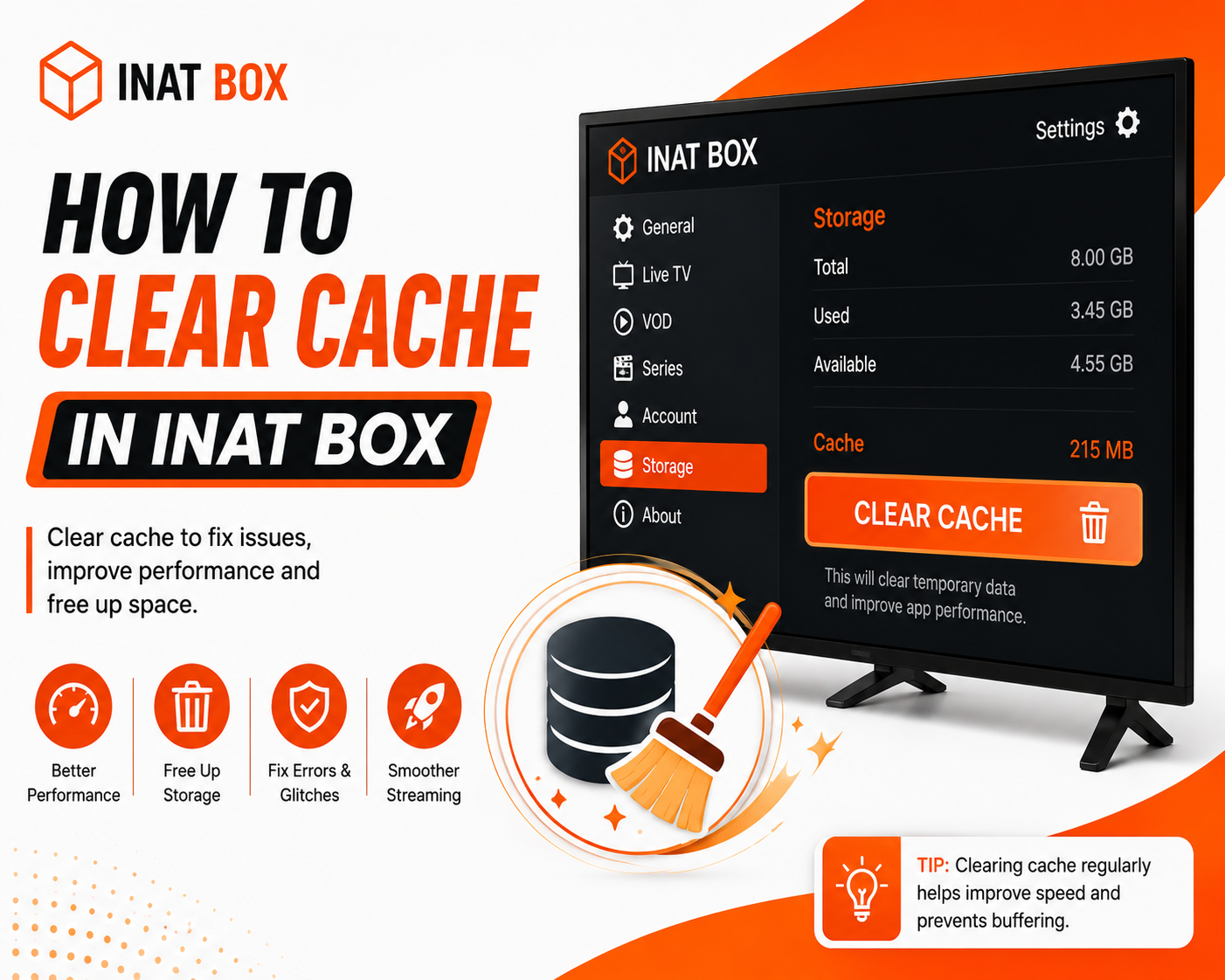
Over time, Inat Box stores temporary files (cache) to help the app load content faster. However, these cached files can become outdated or corrupted, leading to issues such as slow performance, buffering, crashes, login problems, or videos not loading properly. Clearing the cache removes these temporary files without deleting the app itself and is one of the easiest ways to improve performance.
Why Should You Clear the Inat Box Cache?
Clearing the cache can help:
- Fix slow app performance
- Reduce buffering issues
- Resolve app crashes
- Fix loading and playback errors
- Remove corrupted temporary files
- Improve overall app responsiveness
Unlike clearing app data, clearing the cache does not usually remove your preferences or settings.
Method 1: Clear Cache from Android Settings
This is the easiest and most reliable method.
Follow these steps:
- Open Settings on your Android device.
- Tap Apps or App Management.
- Find and select Inat Box.
- Tap Storage or Storage & Cache.
- Tap Clear Cache.
- Wait a few seconds for the process to finish.
- Reopen Inat Box.
The app will automatically create new cache files as you continue using it.
Method 2: Clear Cache on Android TV or TV Box
If you’re using Inat Box on an Android TV device:
- Open Settings.
- Select Apps.
- Choose See All Apps if needed.
- Select Inat Box.
- Open Storage & Cache.
- Select Clear Cache.
Restart the app after clearing the cache to check if the issue has been resolved.
Restart Inat Box
After clearing the cache:
- Close the app completely.
- Remove it from the Recent Apps screen.
- Open Inat Box again.
This allows the app to create fresh temporary files for smoother performance.
When Should You Clear the Cache?
AfteConsider clearing the cache if you notice any of these problems:
- The app is running slowly.
- Videos keep buffering.
- Inat Box crashes frequently.
- Content won’t load.
- Audio or video playback issues occur.
- The app freezes or becomes unresponsive.
Clearing the cache is often the first troubleshooting step before reinstalling the app.
Clear Cache vs. Clear Data
Although both options are available in Android settings, they work differently.
| Feature | Clear Cache | Clear Data |
| Removes temporary files | ✅ Yes | ✅ Yes |
| Deletes app settings | ❌ No | ✅ Yes |
| Resets the app | ❌ No | ✅ Yes |
| Recommended first | ✅ Yes | ❌ Only if needed |
If clearing the cache doesn’t solve the problem, you can try Clear Data, but keep in mind that it may reset your app preferences.
Update Inat Box After Clearing Cache
If problems continue after clearing the cache:
- Download the latest version of Inat Box from a trusted source.
- Install the updated APK.
- Restart the app.
Many performance issues are resolved through app updates.
Tips to Keep Inat Box Running Smoothly
For the best experience:
- Clear the cache every few weeks.
- Keep Inat Box updated.
- Maintain enough free storage on your device.
- Close unnecessary background apps.
- Restart your device occasionally.
- Use a stable internet connection.
These simple habits can improve app performance and reduce common issues.
Frequently Asked Questions
Final Thoughts
Clearing the Inat Box cache is a quick and effective way to fix common issues such as buffering, crashes, slow performance, and playback errors. Simply open your device settings, navigate to Apps > Inat Box > Storage, and tap Clear Cache. If the problem persists, update the app or reinstall the latest version. Regularly clearing the cache helps keep Inat Box running smoothly and provides a better streaming experience.