How to Fix Inat Box Black Screen
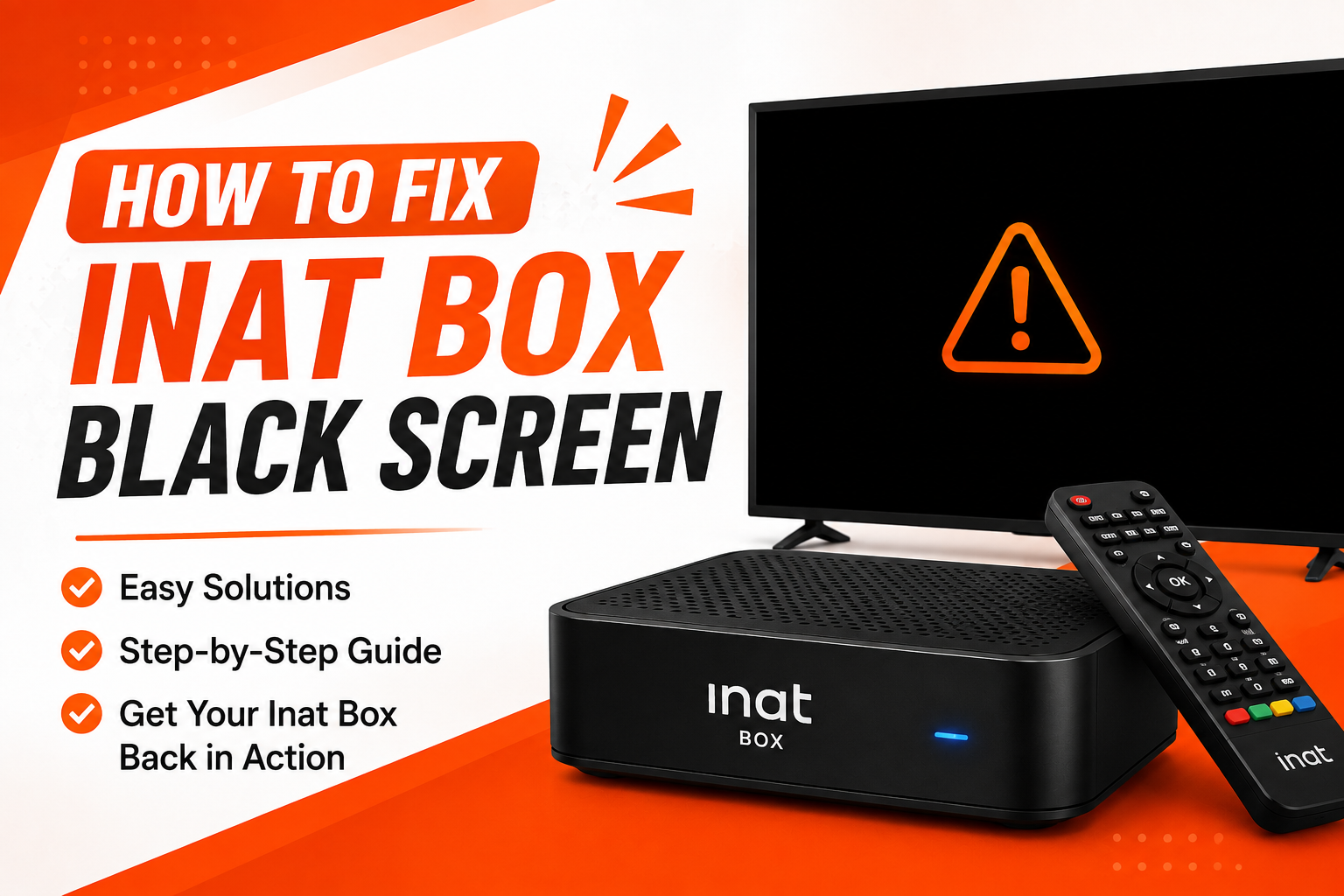
If Inat Box opens to a black screen or stays blank when you try to watch content, the issue is usually caused by corrupted cache files, an outdated app version, internet connectivity problems, or temporary software glitches. In most cases, you can fix the problem in just a few minutes by following the troubleshooting steps below.
Common Reasons Why Inat Box Shows a Black Screen
ClBefore trying the solutions, it’s helpful to understand what may be causing the issue.
Common causes include:
- Outdated Inat Box version
- Corrupted app cache or data
- Slow or unstable internet connection
- Temporary app glitches
- Device compatibility issues
- Low device storage
- Software bugs
- Temporary server problems
Knowing the cause makes it easier to choose the right solution.
1. Check Your Internet Connection
A weak or unstable internet connection can prevent videos from loading properly, resulting in a black screen.
Try these steps:
- Connect to a stable Wi-Fi network.
- Switch between Wi-Fi and mobile data.
- Restart your router.
- Test another streaming app to confirm your internet is working.
Once your connection is stable, reopen Inat Box.
2. Restart Inat Box
Temporary app glitches can sometimes cause a black screen.
To restart the app:
- Close Inat Box completely.
- Remove it from the Recent Apps screen.
- Wait a few seconds.
- Open the app again.
This refreshes the app and often resolves minor issues.
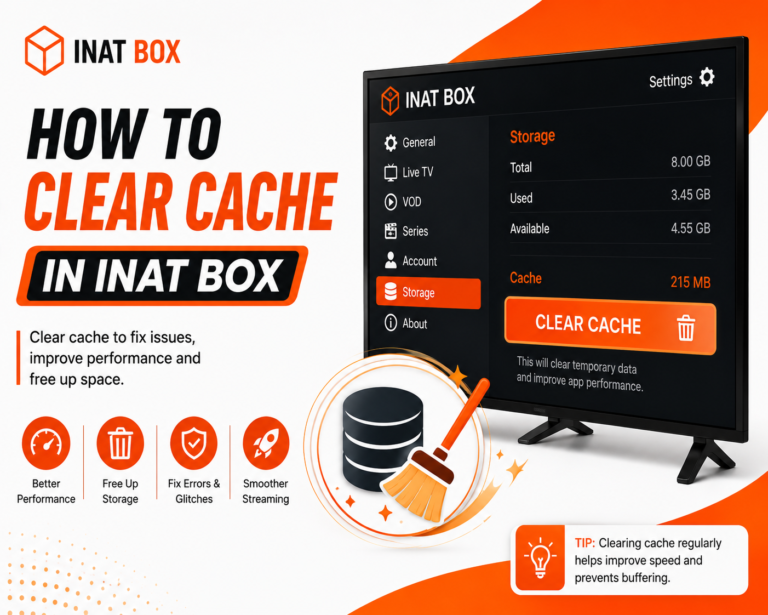
3. Clear App Cache
Corrupted cache files are one of the most common causes of display problems.
Follow these steps:
- Open Settings.
- Go to Apps.
- Select Inat Box.
- Tap Storage.
- Choose Clear Cache.
- Restart the app.
If the issue continues, you can also try Clear Data, but remember that this may reset your app preferences.
4. Update Inat Box to the Latest Version
Older versions may contain bugs that cause black screen issues.
To update:
- Download the latest version from a trusted source.
- Install the updated APK.
- Restart the app.
- Test video playback again.
App updates often include bug fixes and improved compatibility.
5. Restart Your Device
A simple device restart can clear temporary system glitches affecting the app.
To restart:
- Press and hold the Power button.
- Tap Restart.
- Wait for your device to reboot.
- Launch Inat Box again.
This refreshes system resources and can resolve display issues.
6. Free Up Device Storage
Insufficient storage may affect app performance and prevent videos from loading correctly.
To free up storage:
- Delete unused apps.
- Remove unnecessary downloads.
- Clear temporary files.
- Delete duplicate photos or videos.
Keeping enough free space helps apps run more smoothly.
7. Check Device Compatibility
Some older Android devices may not fully support the latest version of Inat Box.
Make sure:
- Your Android version is supported.
- Your device has enough RAM.
- Your operating system is updated.
If necessary, install a version compatible with your Android release.
8. Reinstall Inat Box
If the black screen persists, reinstalling the app can replace damaged installation files.
Steps:
- Uninstall Inat Box.
- Restart your device.
- Download the latest APK.
- Install the app.
- Open Inat Box and check if the issue is resolved.
A fresh installation often fixes persistent problems.
9. Check for Server Issues
Sometimes the problem is caused by temporary server outages rather than your device.
If the app opens but videos don’t load:
- Wait a few minutes.
- Try another movie or TV channel.
- Check community forums or social media to see if other users are reporting similar issues.
If the servers are temporarily unavailable, you’ll need to wait until service is restored.
10. Keep Your Android System Updated
An outdated Android version can create compatibility issues with newer app releases.
To check for updates:
- Open Settings.
- Tap Software Update or System Update.
- Install any available updates.
- Restart your device.
System updates often improve app stability and performance.
Tips to Prevent Black Screen Issues
AfTo keep Inat Box working properly:
- Always install the latest version.
- Clear the app cache regularly.
- Keep enough free storage on your device.
- Use a stable internet connection.
- Restart your device occasionally.
- Download APK files only from trusted sources.
These simple habits can help reduce display and playback issues.
Frequently Asked Questions
Final Thoughts
Most Inat Box black screen issues can be fixed by checking your internet connection, clearing the app cache, updating the app, restarting your device, or reinstalling the latest version. If the problem continues, verify your device compatibility and check for temporary server issues. Following these troubleshooting steps will help restore normal playback and provide a smoother streaming experience.