How to Fix Inat Box Buffering
Buffering is one of the most common issues Inat Box users encounter while streaming movies, TV shows, or live channels. It usually occurs because of a slow internet connection, network congestion, outdated app versions, or temporary server issues. Fortunately, you can reduce or eliminate buffering by following a few simple troubleshooting steps.
Common Reasons Why Inat Box Keeps Buffering
Before trying the fixes, it’s helpful to understand what may be causing the problem.
Common causes include:
- Slow or unstable internet connection
- Weak Wi-Fi signal
- Temporary server congestion
- Outdated Inat Box version
- Corrupted app cache
- Too many background apps
- Low device storage
- High network usage from other devices
Knowing the cause will help you apply the most effective solution.
1. Check Your Internet Connection
A stable internet connection is essential for smooth streaming.
Try these steps:
- Connect to a reliable Wi-Fi network.
- Move closer to your router.
- Switch between Wi-Fi and mobile data.
- Restart your router if the connection becomes unstable.
If other streaming apps are also buffering, the issue is likely with your internet connection.
2. Lower the Video Quality
If your internet speed isn’t fast enough, streaming at a lower resolution can reduce buffering.
To change the quality:
- Start playing a video.
- Tap the screen to open the playback controls.
- Select Settings or Quality.
- Choose a lower resolution, such as 480p or 720p.
A lower quality setting requires less bandwidth and usually provides smoother playback.
3. Update Inat Box to the Latest Version
Older versions may contain bugs that affect streaming performance.
To update:
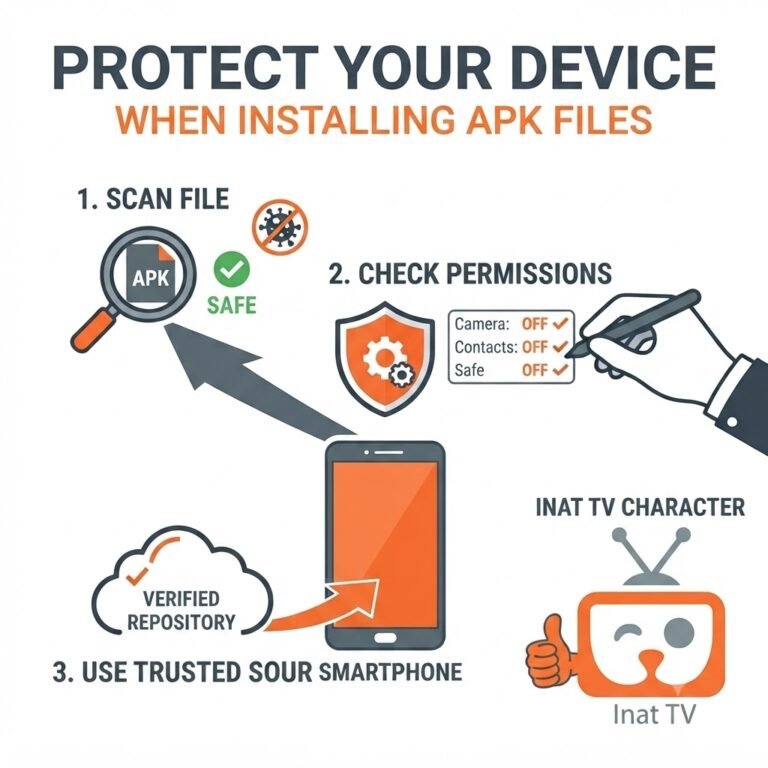
- Download the latest Inat Box APK from a trusted source.
- Install the updated version.
- Restart the app.
- Test streaming again.
New updates often improve playback stability and fix buffering-related bugs.
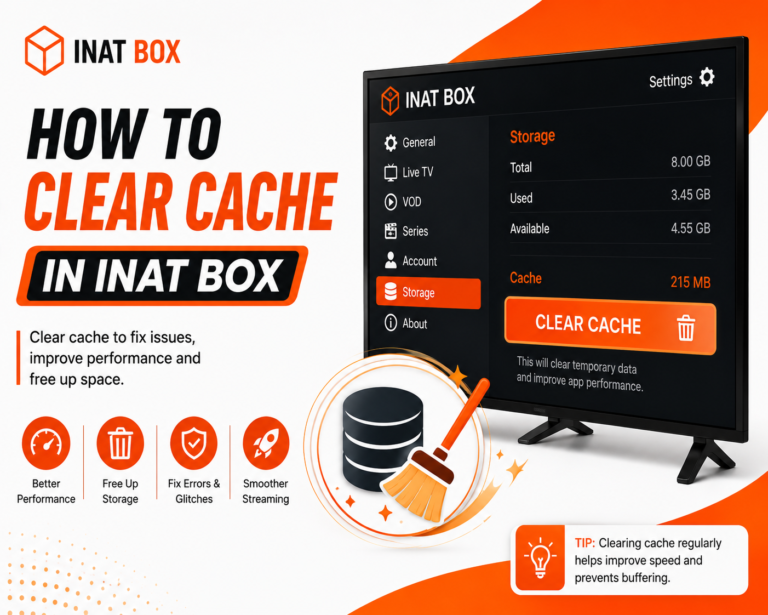
4. Clear App Cache
Corrupted cache files can slow down the app and cause buffering.
Follow these steps:
- Open Settings on your device.
- Go to Apps.
- Select Inat Box.
- Tap Storage.
- Choose Clear Cache.
Reopen the app after clearing the cache.
5. Close Background Apps
Apps running in the background use memory and internet bandwidth.
For better streaming:
- Close unnecessary apps.
- Pause active downloads.
- Stop automatic cloud backups while streaming.
This gives Inat Box more device resources and network bandwidth.
6. Restart Your Device
Temporary software glitches can affect streaming performance.
To restart:
- Press and hold the Power button.
- Tap Restart.
- Wait for the device to reboot.
- Open Inat Box again.
Restarting refreshes system resources and often improves playback.
7. Free Up Device Storage
A device with very little free storage may experience slower performance.
To create more space:
- Delete unused apps.
- Remove unnecessary files.
- Clear downloaded content.
- Delete duplicate photos or videos.
Maintaining sufficient free storage helps apps run more efficiently.
8. Reduce Network Traffic
If multiple devices are using the same internet connection, streaming quality may suffer.
To improve performance:
- Pause downloads on other devices.
- Limit video streaming on the same network.
- Disconnect devices that aren’t in use.
Reducing network traffic provides more bandwidth for Inat Box.
9. Check for Server Issues
Sometimes buffering is caused by temporary server congestion rather than your device.
If videos continue buffering:
- Try another movie or TV channel.
- Wait a few minutes.
- Stream during a less busy time.
If the servers are overloaded, playback should improve once traffic decreases.
10. Reinstall Inat Box
If buffering continues after trying the previous solutions, reinstalling the app may help.
Steps:
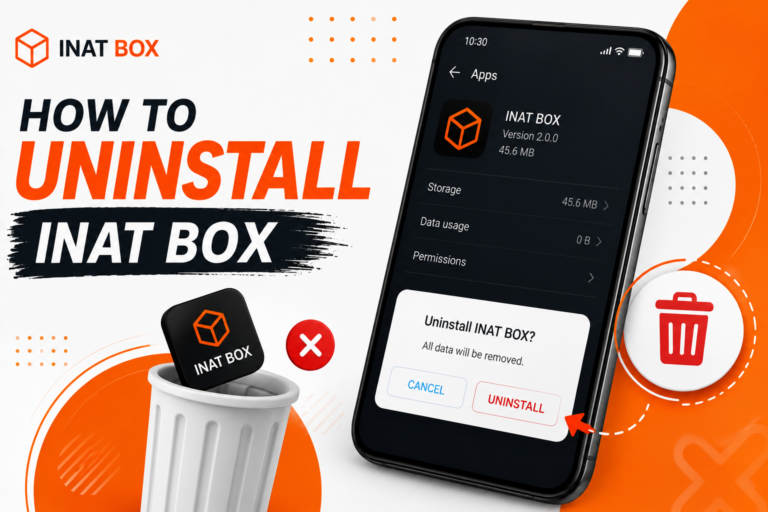
- Uninstall Inat Box.
- Restart your device.
- Download the latest APK.
- Install the app again.
- Test streaming.
A clean installation can resolve problems caused by damaged app files.
Tips to Prevent Buffering
Follow these best practices for smoother streaming:
- Keep Inat Box updated.
- Use a high-speed and stable internet connection.
- Clear the app cache regularly.
- Close unnecessary background apps.
- Restart your device occasionally.
- Keep enough free storage available.
- Stream during off-peak hours if servers are busy.
Frequently Asked Questions
Final Thoughts
Most Inat Box buffering issues can be fixed by improving your internet connection, lowering the video quality, updating the app, clearing the cache, and closing background apps. If buffering persists, free up device storage, check for temporary server issues, or reinstall the latest version of Inat Box. Following these troubleshooting steps will help you enjoy smoother playback with fewer interruptions.